Friday, June 12, 2009

Extending the desktop with your PlayStationPortable

A couple of days ago, I found a little nice potion of software. It’s called pspdisp. This software extends the windows desktop on your Sony PlayStationPortable.

The software contains of two parts. You have to install one part on the PlayStationPortable, the second part, you have to install on your Windows PC.

Pspdisp allows you to connect the PlayStationPortable with your Windows PC via USB or via WLAN. I only tried it via USB. In the display properties dialog, you can setup your new screen.

displayproperties

On my analog desktop,I still got two displays, but with my PlayStationPortable, I got a thrid one.

workplace

Ok, the resolution is not very large, but for small applications it is enough.

psp

On your PlayStationPortable, you need a costum firmware.

Friday, February 27, 2009

Extended classes on more than one platform

Inspired by this article from Kai, I was tried to extend classes for the .Net Compact Framework with methods for the .Net Framework.

I had to work with graphics on the .Net Compact Framework. The opportunities in .Net Compact Framework are a little bit rare. So I decided to handle a part of the functionality on the desktop.

cf_pixelformat

During my work, I created a class, which originally based on an older idea of myself. On the .Net Compact Framework it is not possible to open images as 32BitARGB image. The color-values for RGB are Ok, but the Alpha-information will be ignored by the .Net Compact Framework.

Now, I created an application for the Desktop, which uses the .Net Compact Framework-class. I wanted that, because I don’t want to have redundant source code for both applications. So I tried to extend the existing class with some methods for the Desktop .Net Framework. The new extended methods contains source code for the Desktop including all opportunities and advantages.

dsk_pixelformat

Let’s start now…
I added two projects to a solution. One for the Desktop-Framework, the other for the .Net Compact Framework.

solutionsexplorer

Both projects had the same default namespace (green boxes) but a different assembly name (red boxes).

This are the properties of the base class:
properties_drawing

and this are the properties of the extended class:
properties_drawingextensions

At next you need a reference to the base class in the extended class.

drawingextensions_reference

When you want to use both classes, the base- and the extended class in an other project you have to create a reference to both classes. Additionally, you have to insert a using-statement in each of the source code files where you want to use it.

Summary
Extensions for C#-classes are a fine nice feature. Especially when you could use it over/on different platforms. I used that for my project on www.codeplex.com.

Sunday, January 18, 2009

Windows Vista vs. Windows 7 Beta – Speed and Memory Footprint

During the last days, many people wrote about Microsoft's new operating system Windows 7, which was release as Beta 1 on January 9th 2009.

Yes, I was one of them, who tried it to download at these Friday evening… without success. Well, I tried it on the next Monday morning, after Microsoft canceled the download-limit of 2.5 mio. downloads.

At first, I would like to say something about my work background. I’ve never used Windows Vista at work, just at home on my wife’s computer. I only used, or I would say more tested, it on virtual machines. At work, I use Microsoft Virtual PC 2007 SP1. I could gave all vm’s just 1 gigabytes of RAM, so I have nearly identically machines for Vista and 7. When I talk here about Windows Vista, I mean a Vista with service pack 1 and all updates.

Windows Vista

There are no big difference during the installation of Windows Vista and Windows 7 Beta. It’s very easy to handle. Both are completely covered in a graphical user interface. A few clicks there, a few clicks here, give the computer a name and don’t forget your password and just wait a few minutes…Ready!

But then, then you get the big big surprise. Windows 7 Beta is much faster in the boot sequence then Windows Vista. I’ve made two screen captures, the first is from Windows Vista, the second is from Windows 7 Beta. I stopped the time from when I switched on the vm until I saw this screen.

Windows 7 Beta

There must be enormous differences in the internal boot sequence when you Windows 7 Beta needs nearly only the half time to boot than Windows Vista.

Time for booting
Windows Vista 90 seconds
Windows 7 Beta 50 seconds

In my opinion, that difference is highly remarkable.

Another aspect, especially for older computer or mobile computer like netbooks is the memory footprint of the operating system. That is one reason why Windows XP is still sold with netbooks.

If you have an older office computer or a netbook with 1 gigabytes of RAM, it is important that the operating system takes care of his own memory needs. Windows Vista don’t do that so nice and need just for the operating system nearly 420 megabytes of RAM. With the same desktop configuration, Windows 7 Beta just need 360 megabytes of RAM.

Memory needs for the operating system
Windows Vista 430 megabytes
Windows 7 Beta 360 megabytes

Summary

Well, I am not a friend of Windows Vista, but I could become a friend of Windows 7. For that early beta-version, it is fast, stable and looks much better then Windows Vista. Microsoft is with Windows 7 on a better way, than they ever were with Windows Vista.

Tuesday, December 16, 2008

Looking through Images - working with transparent images in the .Net Compact Framework

In the .Net Framework it's quiet easy to work with transparent images. But if you want to work with transparent images on the .Net Compact Framework it's not so easy. The reason for this behavior is, that System.Drawing.Bitmap from the .Net CF don't support information from the Alpha-channel. You can read Png-files, but these information will be ignored.

Some, who know the know more of the operating systems for Smart Devices, Windows Ce and Windows Mobile, might say, that you could you use the AlphaBlending-Api. Sure, that is right. But you should know, that the AlphaBlending-Api is just a part required of Windows Mobile and not of Windows Ce. So you could use it only, if you know that Smart Device where you application should run, supports it.
But, are you really sure?

When I had to work with transparent images on Smart Devices, I couldn't be sure. To many different devices with to many different configurations of the operating system.

The problem was very easy. I had to combine two bitmaps like these...

transparency_background_01

 transparency_overlay01


When you using System.Drawing.Bitmap and set a color from the Bitmap as the transparent color with the ImageAttributes, the results are really...are really...I don't know...They are not really nice. It looks like that...

Transparent Images with the .Net Compact Framework by it's own

So, what you could you do, that this looks better, maybe like on the desktop?

It's a little bit difficult and you need a lot of steps, but it's possible.

At first, you have to convert the bitmap data. You need direct access to every single pixel of the bitmap. We must store all four bytes of a pixel in a separate array or file. That is only in the full .Net Framework possible. I used an array of this structure...
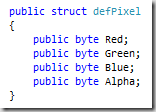
PixelDataStructure

...which I stored in a file. That file, I had to copy in the file system of the Smart Device.

On the Smart Device, you have to read the file from the file system into your application. There, you have to combine your bitmap data with a 'normal' bitmap for showing it in the display.

For the combining of both bitmaps, I used that algorithm.

transparency_own_01

In my opinion, the result is much better, like on the full .Net Framework.

Pro's and Con's

OK, it looks smart and it could be very flexible with little bit more code. But you should know that this result is not for free.

I think the most important contra is, that this solutions is not really fast. It takes a few milliseconds to read the file from the file system, it takes a few more milliseconds to combine both bitmaps and a last it takes a few milliseconds for showing it on the display. OK, if you have smaller overlaying bitmaps, it isn't so much slower, but you will notice it quickly.

The second, not less important contra is, that you need more memory. If you use it with operating systems with are based on Windows Ce 5.0 or older, you have only a process size of 32 MBytes.


Summary

I told you a little about the concept how it is possible to work with transparent bitmap on the .Net Compact Framework. During my work with it, I created a whole library around it to solve some of the contras. It's still in using since nearly two month on different Smart Devices without any larger problems.

So be sure, it's possible to work with smart blended bitmaps on the .Net Compact Framework.

The complete screen in 320*240

Thursday, December 11, 2008

Printing with an Usb-Printer in .Net CF

During the last days, I tried to print with an Usb-printer from an Symbol/Motorola MC 70.

The .Net CF don't support printing like the full framework. OK, what should happen now, I had to fix that.

When I plugged the Usb-cable from the printer into the craddle while the MC 70 is in it, the operating system (Windows Mobile 5.0) creates a virutal port for the printer. The port is called "LPT1:".

That's OK for the beginning... I tried to open that port with System.IO.Ports.SerialPort, but it wouldn't work. At one time, I got an IOException without an reason, at another time, I got an IOException with a reason (the enum-value for the StopBits were not in the correct range(!?)). It wouldn't work. Damn...

So, I asked Google for a little help and I found an entry on CodeProject.com. Orkun Gedik had nearly the same problem a couple of years ago and so her created a workaround with a lot of P/Invokes for the old .Net CF v.1.0... Wow, that works still today. I am very interested in such things, so I looked in the source code... Hm... OK...Orkun tried it with a file, named like the portname...

Why that shouldn't work with System.IO.FileStream? I tried it and... BINGO... that works, too. Just create a new instance from the FileStream-object and send your data as a byte-array. Everything is done! Thank you, Orkun,

Monday, October 27, 2008

Small Basic - just a step beside there could be a lot of FUN...

Today, I found at DotNetGerman bloggers a nice entry. About a new dev-tool called "Small Basic" from Microsoft.

It´s a small tool for beginners, which have just started width developing. The tool demonstrates with just a handful of commands how easy and funny it could be to realize some nice programs.

Small Basic reminds me on the Logo-language from the old school computers... with the little turtle when you draw lines, points, etc. on the screen.

In my opinion, it's a nice toy...

Have fun with it...

Wednesday, October 22, 2008

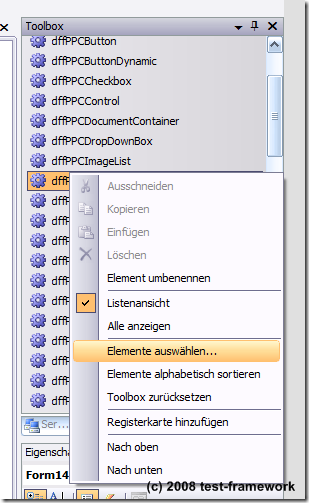
Visual Studio 2008 crashes while init "Choose Items Toolbox"-dialog

During the last days, I got a lot of trouble with my Visual Studio 2008 Prof. Each time, when I want to reorganize the toolbox for the WinForms-Designer, Visual Studio 2008 crashes completely without an error-message.

selecttoolboxitems_1


I tried it a couple of times, without any success - damn. I tried the same on an other computer - nothing happened, just the normal behavior - Visual Studio opened the dialog-box. Later, I ask Google for a solution - well done. I found a post in a newsgroup with the same background.

The reason in my case was, that I have had installed the "Power Commands"-AddIn. So, the solution was quiet simple -  just uninstalling the AddIn and try it again - with success.