Thursday, December 11, 2008

Printing with an Usb-Printer in .Net CF

During the last days, I tried to print with an Usb-printer from an Symbol/Motorola MC 70.

The .Net CF don't support printing like the full framework. OK, what should happen now, I had to fix that.

When I plugged the Usb-cable from the printer into the craddle while the MC 70 is in it, the operating system (Windows Mobile 5.0) creates a virutal port for the printer. The port is called "LPT1:".

That's OK for the beginning... I tried to open that port with System.IO.Ports.SerialPort, but it wouldn't work. At one time, I got an IOException without an reason, at another time, I got an IOException with a reason (the enum-value for the StopBits were not in the correct range(!?)). It wouldn't work. Damn...

So, I asked Google for a little help and I found an entry on CodeProject.com. Orkun Gedik had nearly the same problem a couple of years ago and so her created a workaround with a lot of P/Invokes for the old .Net CF v.1.0... Wow, that works still today. I am very interested in such things, so I looked in the source code... Hm... OK...Orkun tried it with a file, named like the portname...

Why that shouldn't work with System.IO.FileStream? I tried it and... BINGO... that works, too. Just create a new instance from the FileStream-object and send your data as a byte-array. Everything is done! Thank you, Orkun,

Monday, October 27, 2008

Small Basic - just a step beside there could be a lot of FUN...

Today, I found at DotNetGerman bloggers a nice entry. About a new dev-tool called "Small Basic" from Microsoft.

It´s a small tool for beginners, which have just started width developing. The tool demonstrates with just a handful of commands how easy and funny it could be to realize some nice programs.

Small Basic reminds me on the Logo-language from the old school computers... with the little turtle when you draw lines, points, etc. on the screen.

In my opinion, it's a nice toy...

Have fun with it...

Wednesday, October 22, 2008

Visual Studio 2008 crashes while init "Choose Items Toolbox"-dialog

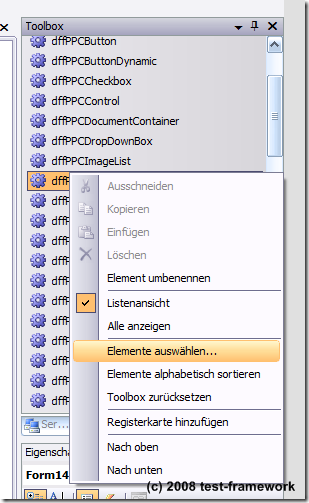
During the last days, I got a lot of trouble with my Visual Studio 2008 Prof. Each time, when I want to reorganize the toolbox for the WinForms-Designer, Visual Studio 2008 crashes completely without an error-message.

selecttoolboxitems_1


I tried it a couple of times, without any success - damn. I tried the same on an other computer - nothing happened, just the normal behavior - Visual Studio opened the dialog-box. Later, I ask Google for a solution - well done. I found a post in a newsgroup with the same background.

The reason in my case was, that I have had installed the "Power Commands"-AddIn. So, the solution was quiet simple -  just uninstalling the AddIn and try it again - with success.

Wednesday, February 20, 2008

DesignTime-Controls for .Net CompactFramework with P/Invoke

Creating designtime-controls for the .Net CompactFramework isn't so difficult today like in former days. The tools are much better and the documentation also. But only when you just use the 'normal '-.Net stuff.

When you plan to create a custom control for the .Net CompactFramework which uses a lot of Api-functions, you will get into a lot of trouble.

The reason? The Reason is quiet simple. The .Net CompactFramework isn't so complex like the desktop-version, and so you have to use much more often P/Invokes for some features.

The Win32-Api provides a lot of function. The most functions are based in ‘user32.dll’ and ‘gdi32.dll’. Sure there are nearly uncountable more functions in other Dll-files, but these two files should be enough for the moment.

On devices with Windows Ce it’s a little bit different. The WinCe-Api is mostly in the file ‘coredll.dll’. The WinCe-Api contains a smaller number of functions from Win32-Api.

For this documentation I choosed an Api-function which you might use very often, the SendMessage-function. Sure, you can use the SendMessage-implementation from the ‘Microsoft.WindowsCE.Forms”-namespace (MessageWindow.SendMessage()), but in my opionon, this is a good example.


OK, let us start now:

When you declare a P/Invoke in a solution for mobile devices it looks like that:

[System.Runtime.InteropServices.DllImport(“coredll.dll”, EntryPoint = "SendMessage")]
private static extern int SendMessage(IntPtr hwnd, int msg, int wParam, int lParam);

That source code works fine on a mobile device, but you want to create a design time-control and than, that part of source code had to run on a Win32-Api. Damn – it fails. But why? You tried to let source code run for mobile devices with a WinCe-Api on a Desktop-Computer with a Win32-Api. The source code just tried to do what you want, to import the ‘coredll.dll’-file and they is ‘missing’ in the Win32-Api.

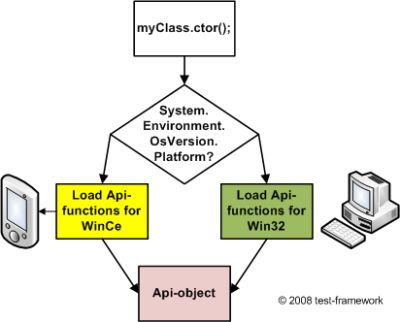
So what we do to let that source code run on both Api? It’s not very difficult but sometimes very helpful. Let’s take a look on the following diagram, it shows you a simple and easy way how you can use the same source code on both platforms.


In the contructor of your class you need a condition which ask on which platform the source code is running.


How to implement both Api:

All what we need are three new classes and a new object in your current source code.

At first we need a base class which provides all api-functions.


Api-base class

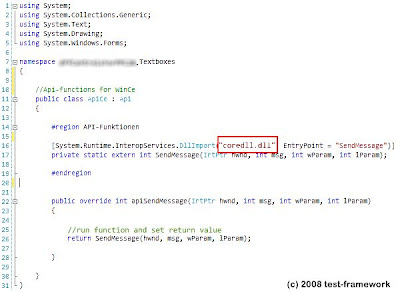
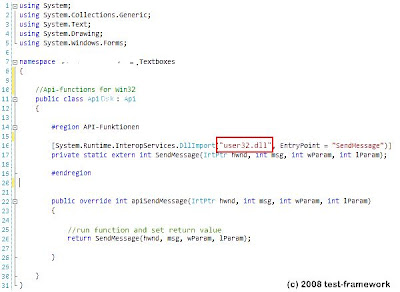
At the next step, we need for both, the WinCe and the Win32,-Api a class which imports the correct Dll-files snd declares the correct imported functionnames. Both classes inherits the base class.


ApiCe for WinCe-Api


ApiDsk for Win32-Api


The following step is to create an Api-object in your custom control. The object type is the Api-base class.

The last step is to modify the constructor of your custom control. It need a condition which ask on which platform your source code is running.


Condition for the OS


Usage:

To call the Api-function from your source code, you need just a single call for both Api.